

How to export an email template to HubSpot
In this article, you can find more information on exporting email templates from Pagenflow to HubSpot.


1. Template selection
To export your email template from Pagenflow directly to HubSpot, you need to:
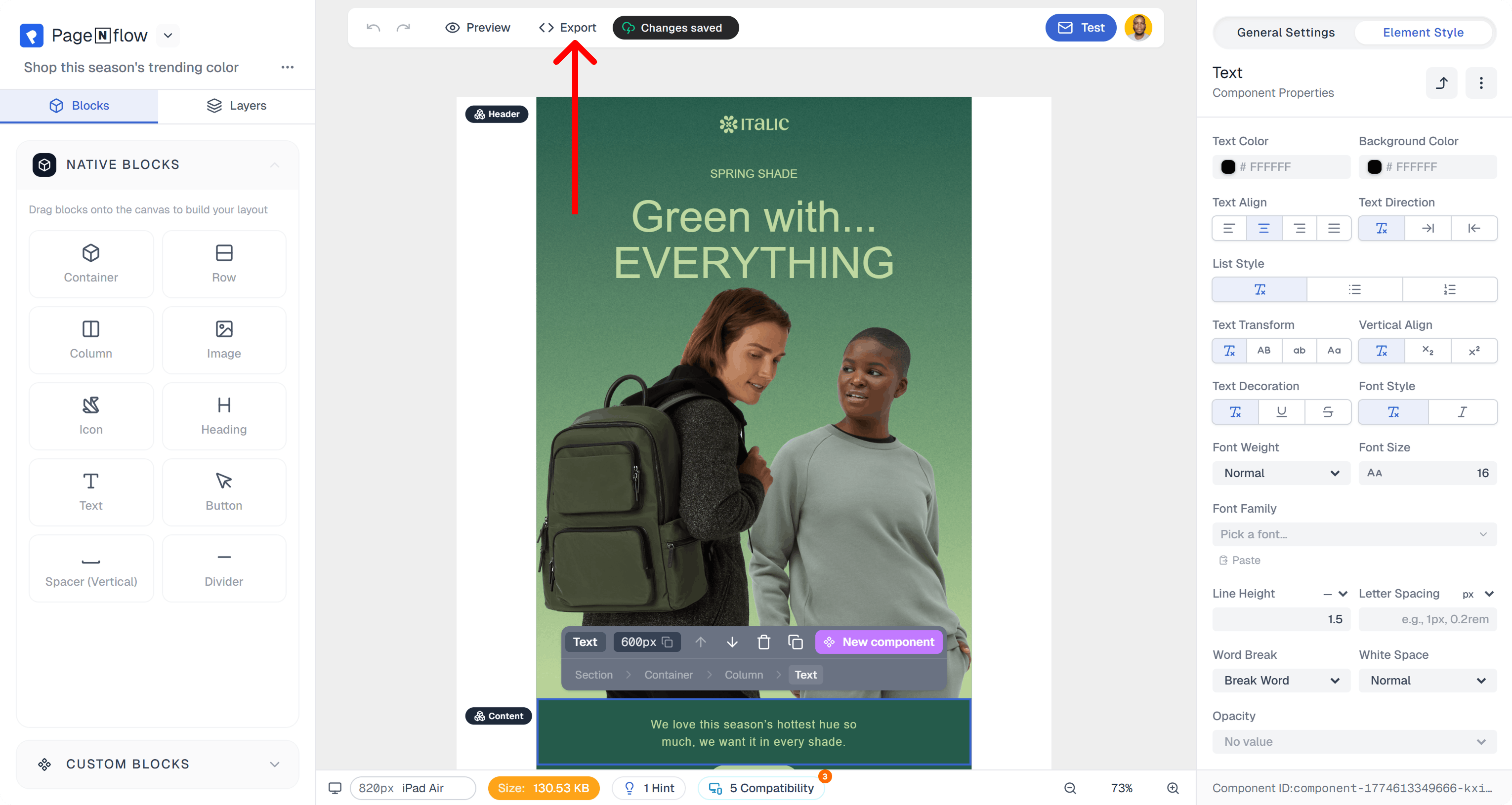
Open an email template and click the "Export" button, which is located above the email template.
You an also access to your personal templates from your workspace.
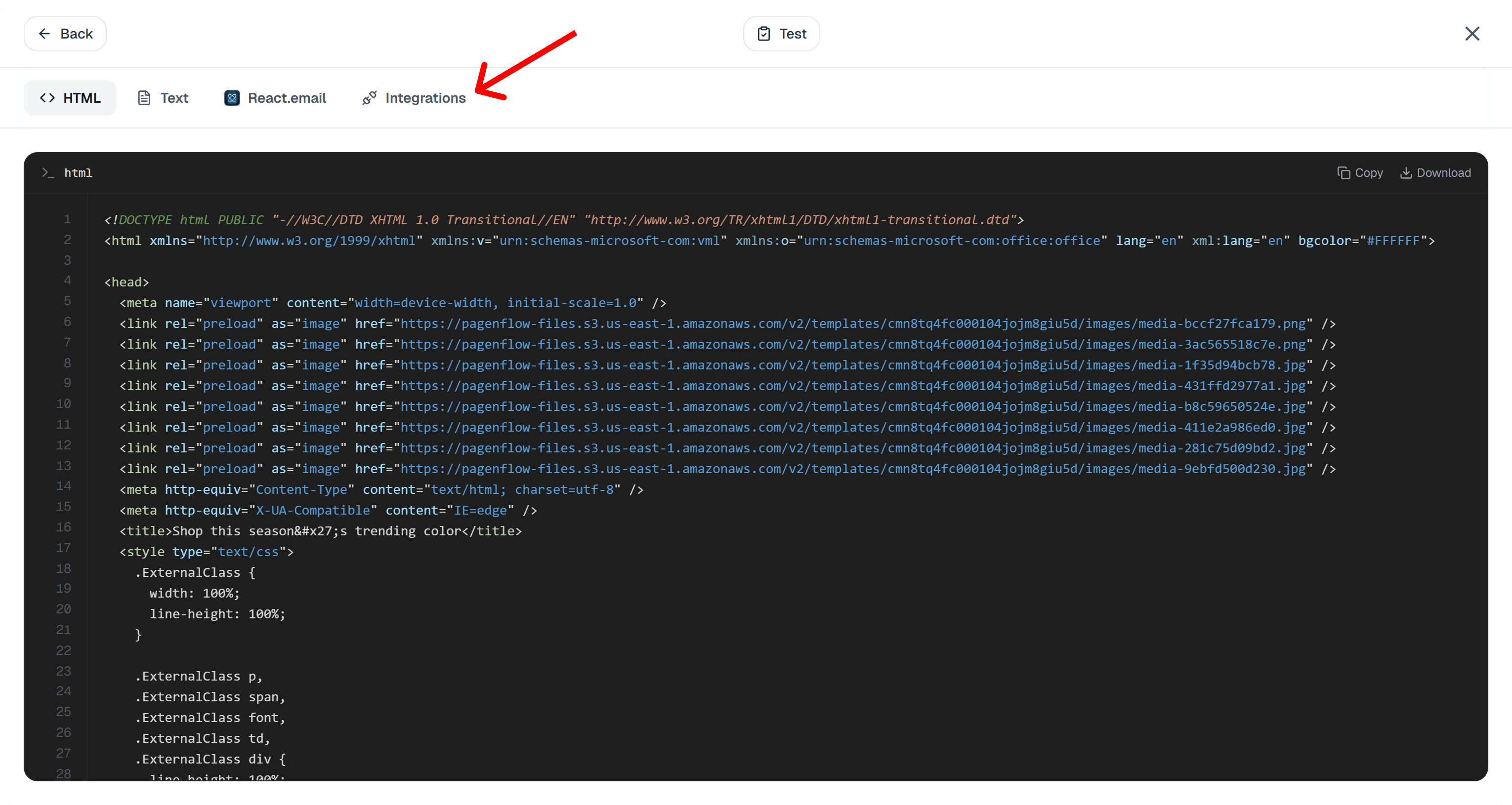
Under the usage card, click on the "Integrations" tab.
2. HubSpot account connection
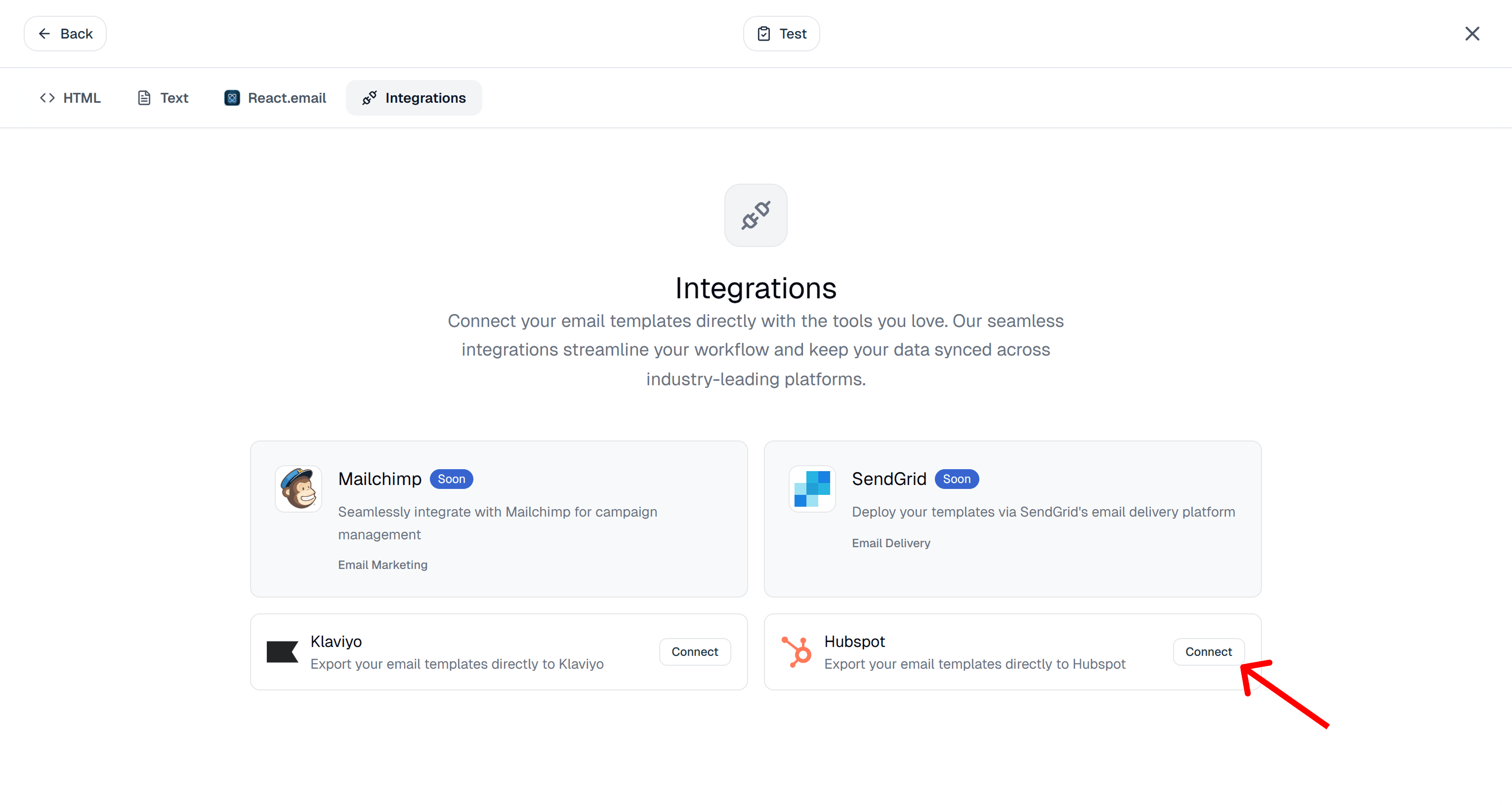
If you have not already connected your Pagenflow account with HubSpot, you will see a "Connect" button at the end of the HubSpot integration item. Click on it.
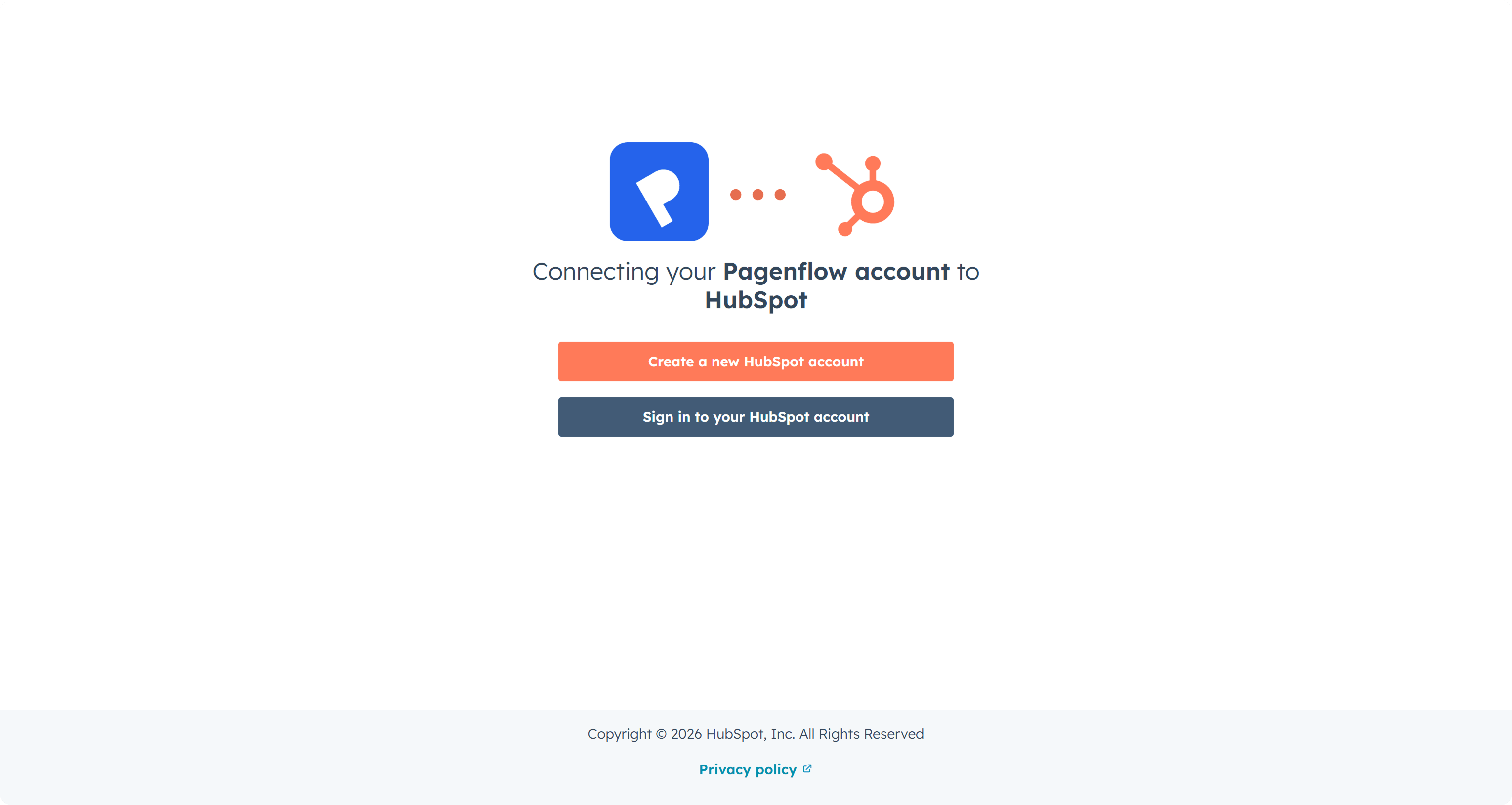
On the connection page, you have the option to sign in or create a new HubSpot account.
If you see the following screen, I suggest you to cancel the process, Sign in to HubSpot first in a new browser tab and then get back to Pagenflow to export your template.
If you are already connected to Hubspot on your current browser or after the previous step, you should be redirected to the following page.
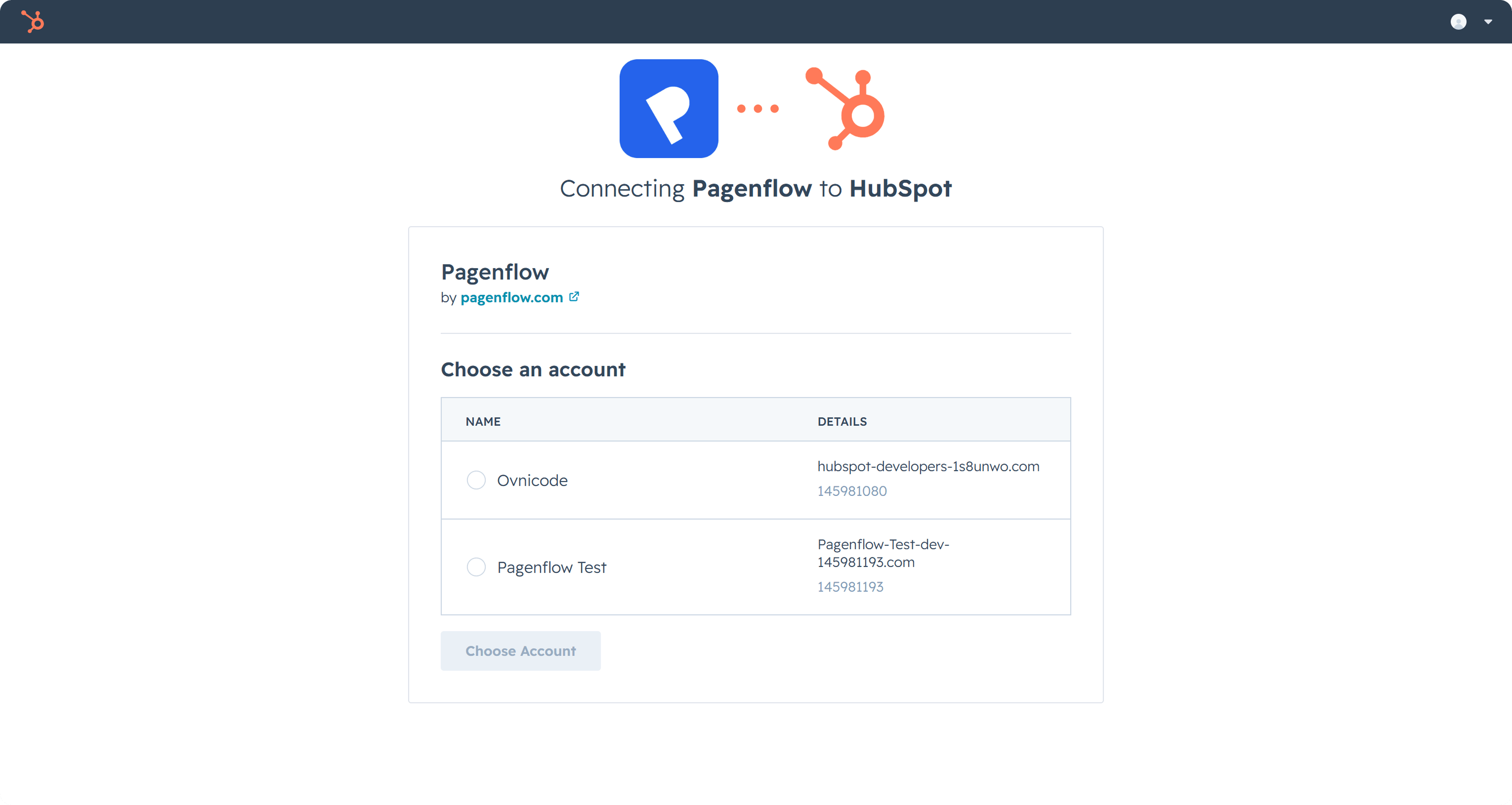
Pick an account and click on "Choose Account" button.
3. Export
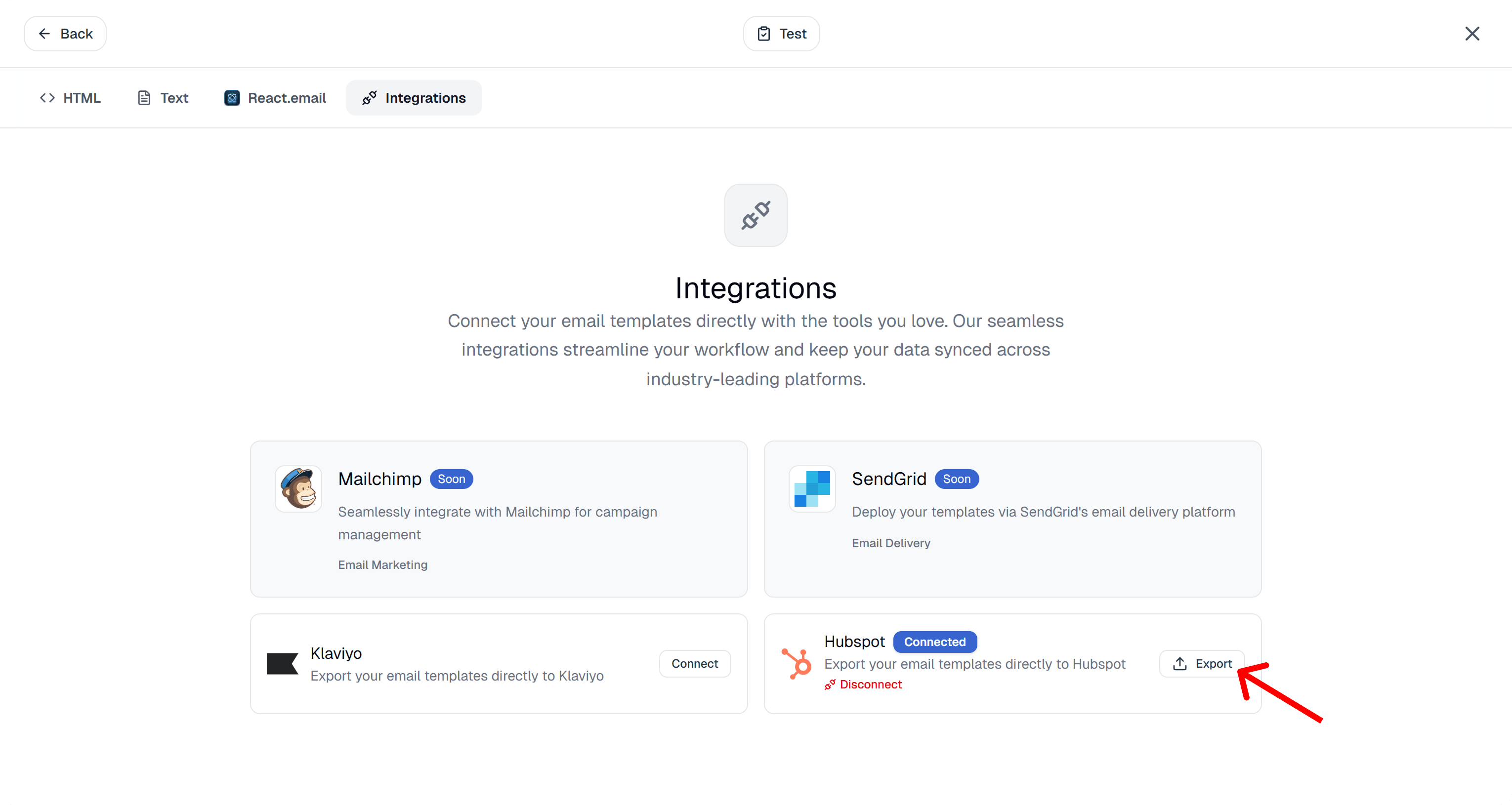
If your Pagenflow account is already connected to Hubspot, you will see an "Export" button at the end of the Hubspot integration item. Click on it.
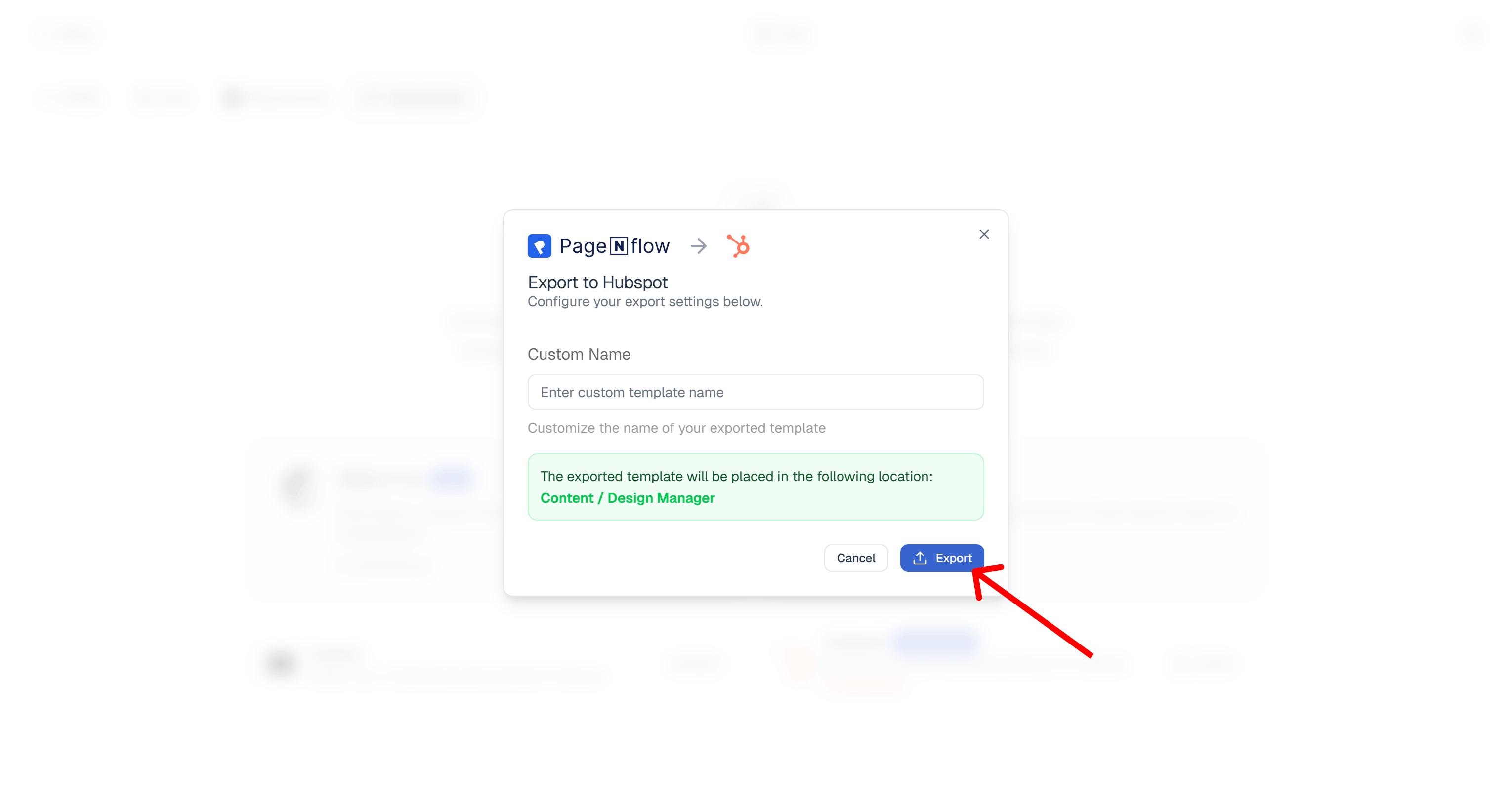
On the export dialog, you can add a custom name to avoid duplication errors then, click on the "Export" button.
Ready to build your next email template?
Drag, drop, done. Build pixel-perfect, responsive emails in minutes — no HTML wrestling required.
No credit card required
Tested across Gmail, Outlook, Apple Mail & more.