

How to export an email template to Klaviyo
In this article, you can find more information on exporting email templates from Pagenflow to Klaviyo.

1. Template selection
To export your email template from Pagenflow directly to Klaviyo, you need to:
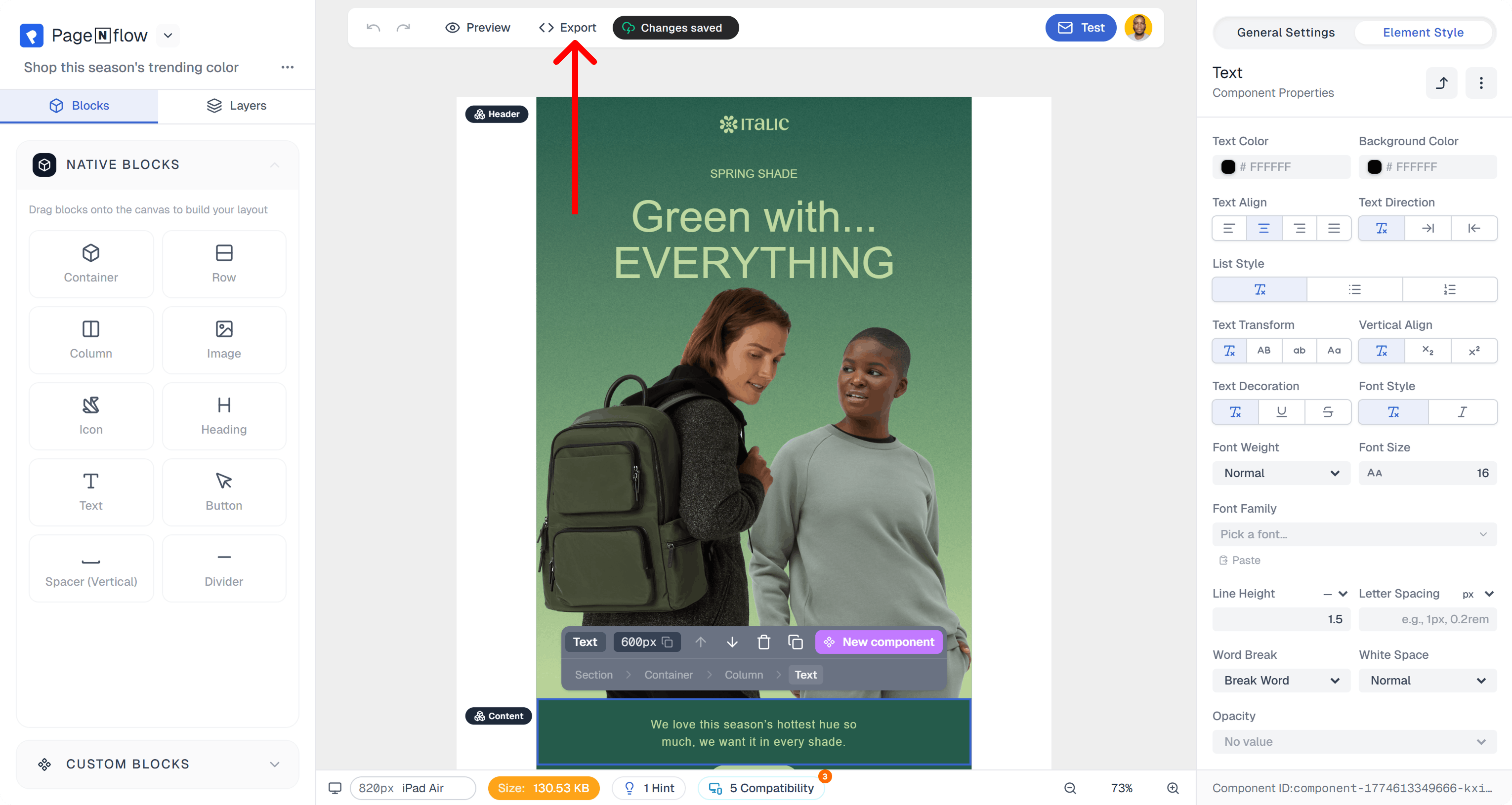
Open an email template and click the "Export" button, which is located above the email template.
You an also access to your personal templates from your workspace.
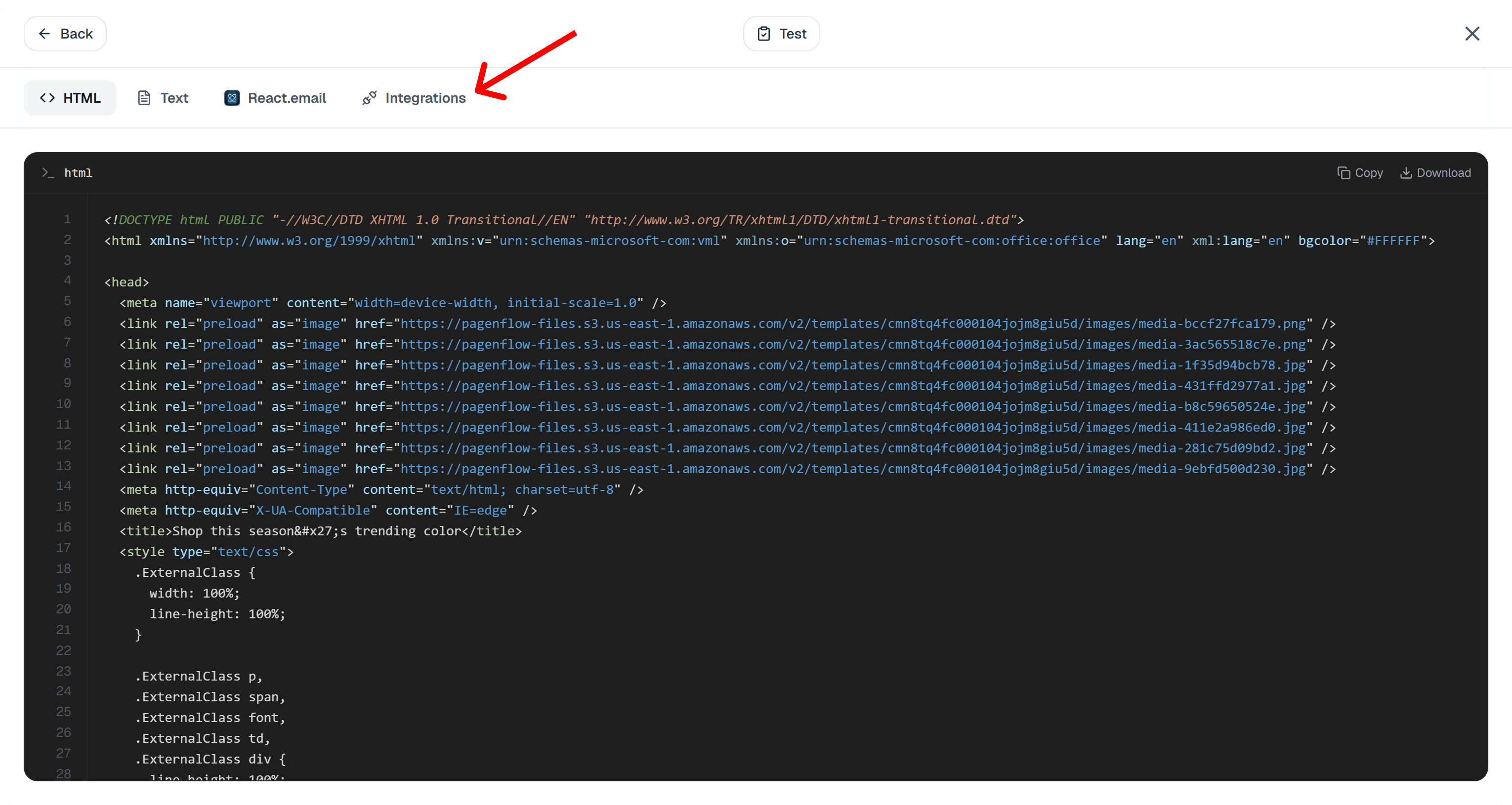
Under the usage card, click on the "Integrations" tab.
2. Klaviyo account connection
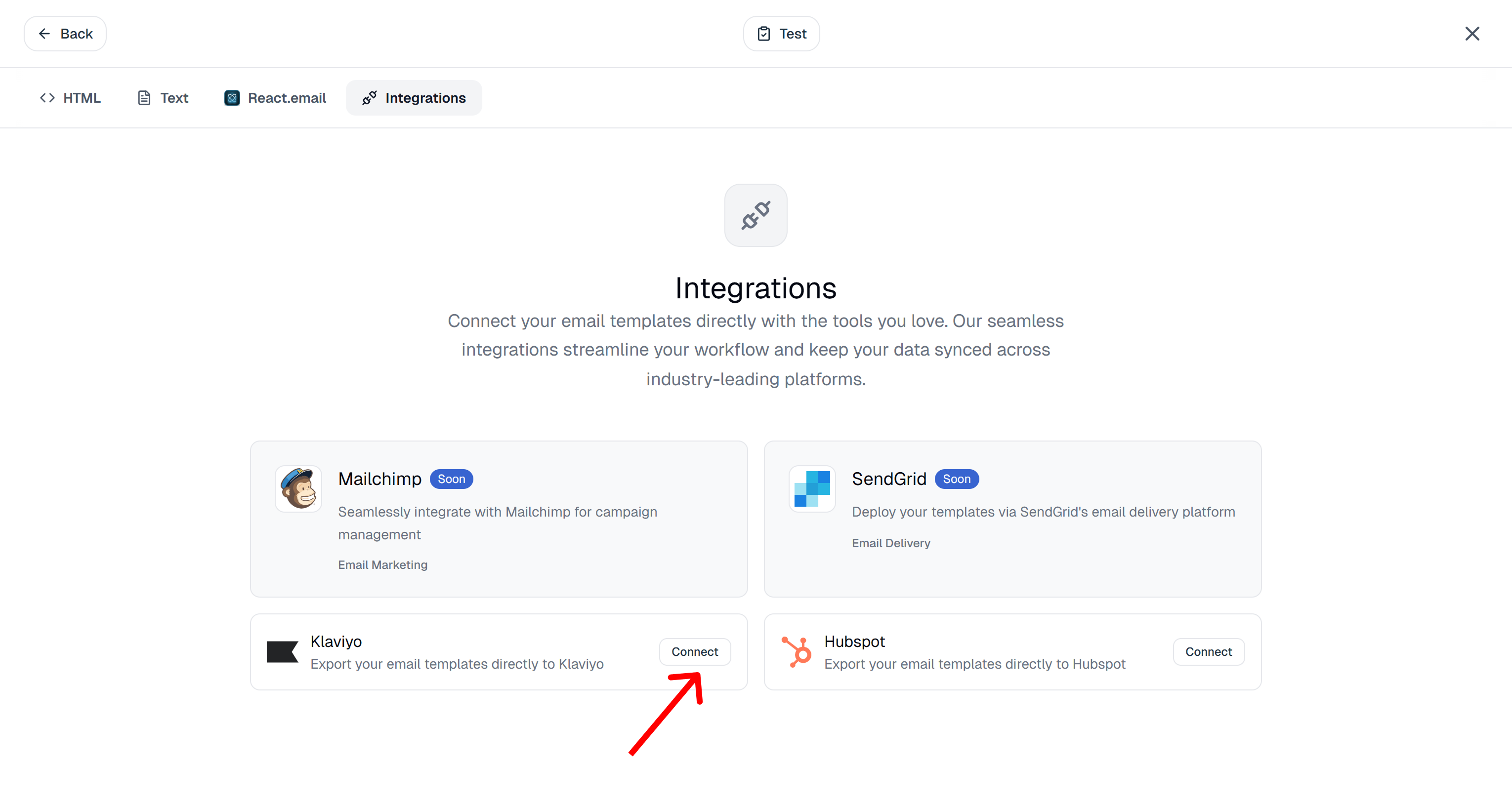
If you have not already connected your Pagenflow account with klaviyo, you will see a "Connect" button at the end of the Klaviyo integration item. Click on it.
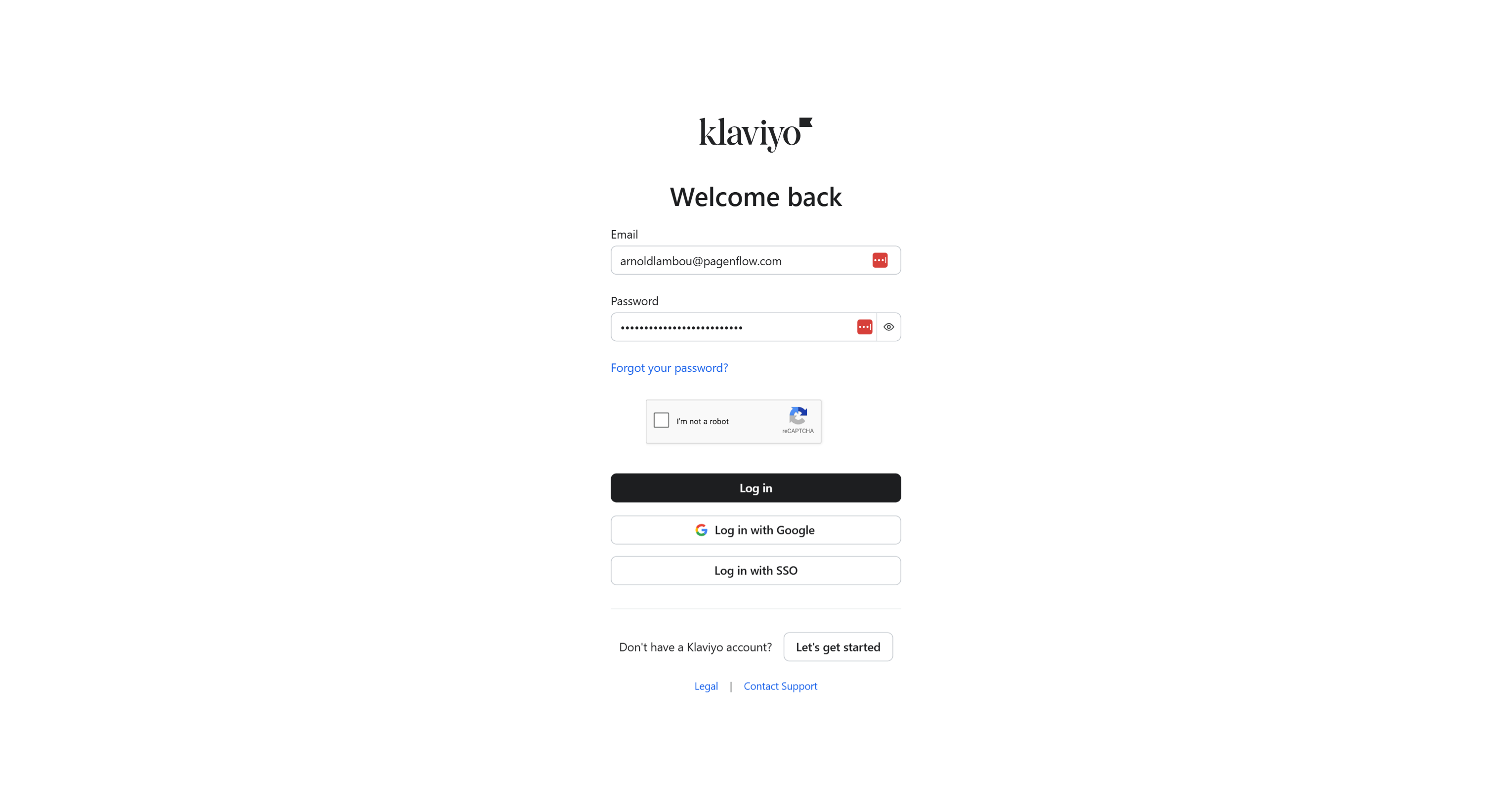
On the connection page, you have the option to sign in or create a new Klaviyo account.
If you see the following screen, I suggest you to cancel the process, Sign in to Klaviyo first in a new browser tab and then get back to Pagenflow to export your template.
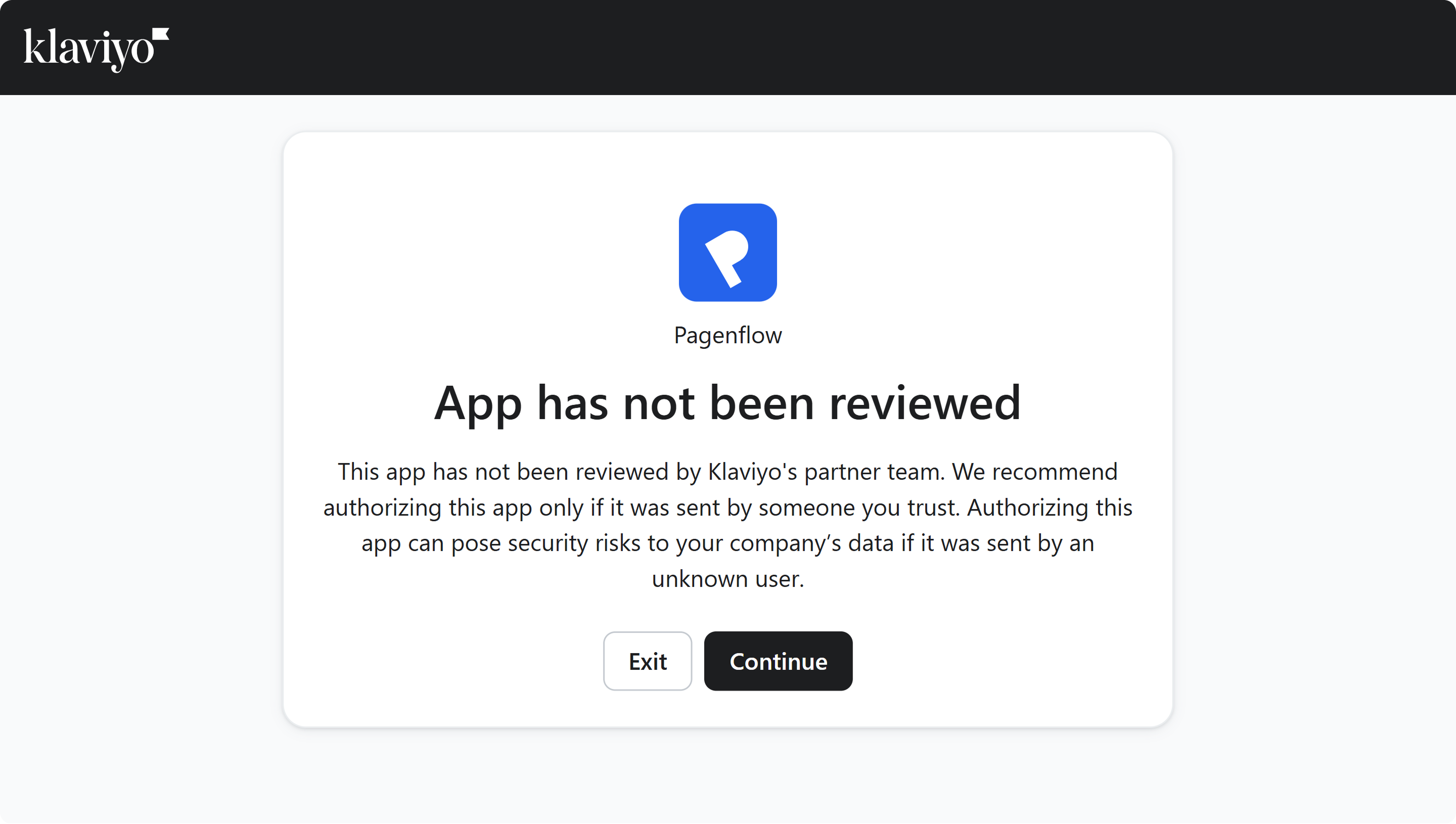
If a the time you attempt to connect to Klaviyo we have not yet been approved by their team you will be redirected to the following page after authentication.
If our app has already been reviewed by Klaviyo partner team, you will see the following page:
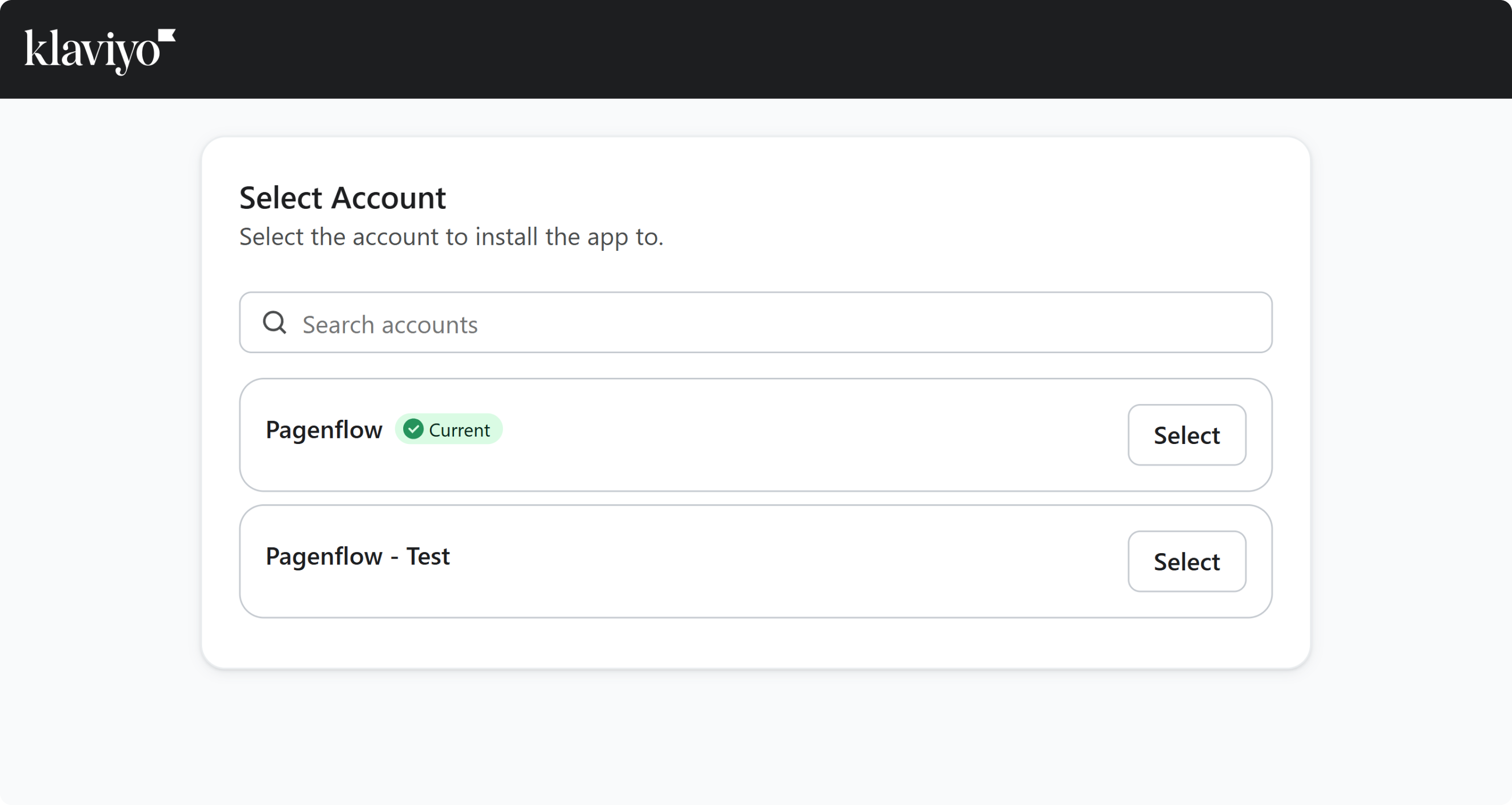
Pick an account by clicking on the "select" button next to it (far right).
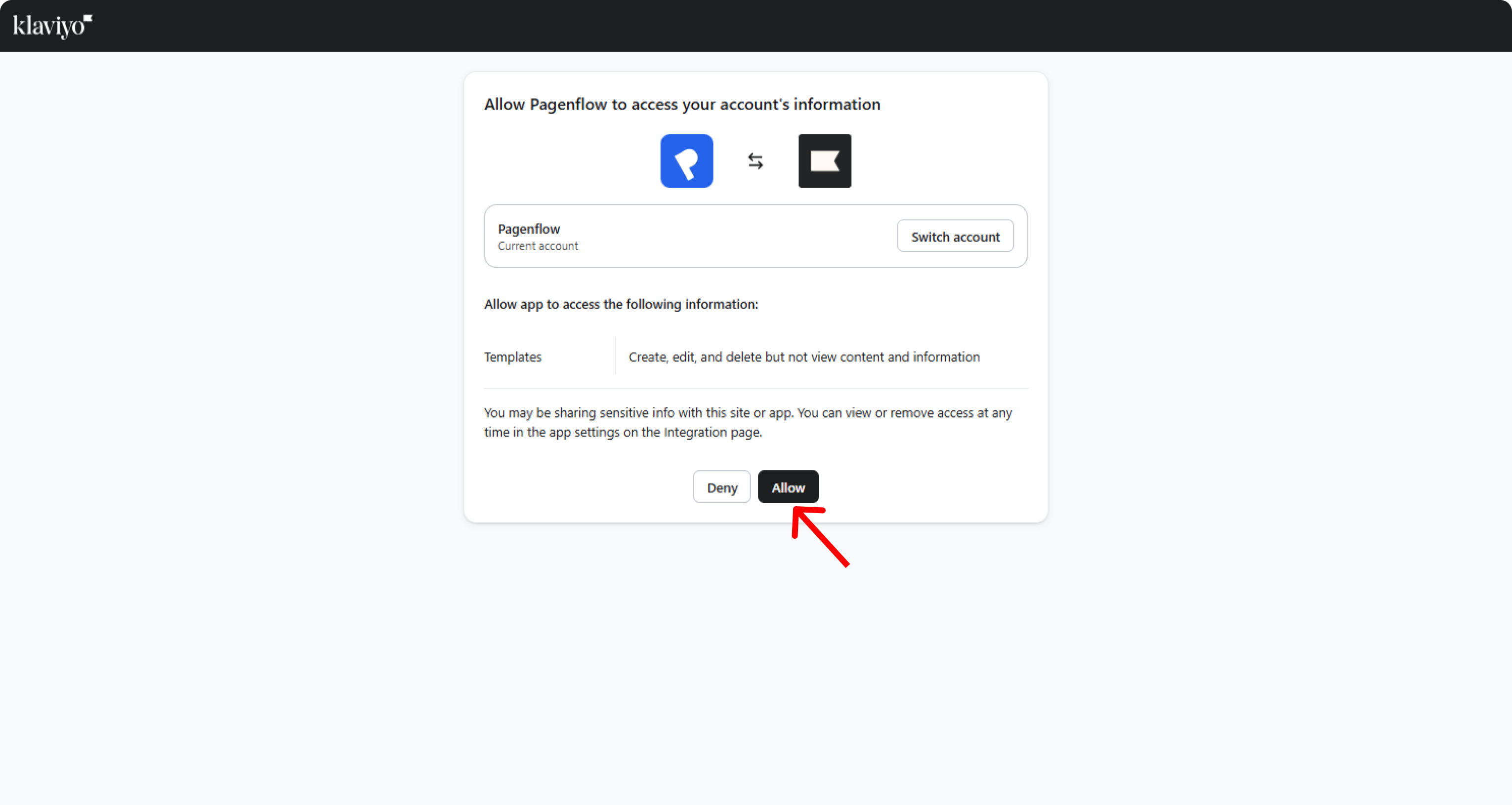
Click on "Allow" to finish the connection and you will be redirected back to the template editor.
3. Export
If your Pagenflow account is already connected to Klaviyo, you will see an "Export" button at the end of the Klaviyo integration item. Click on it.
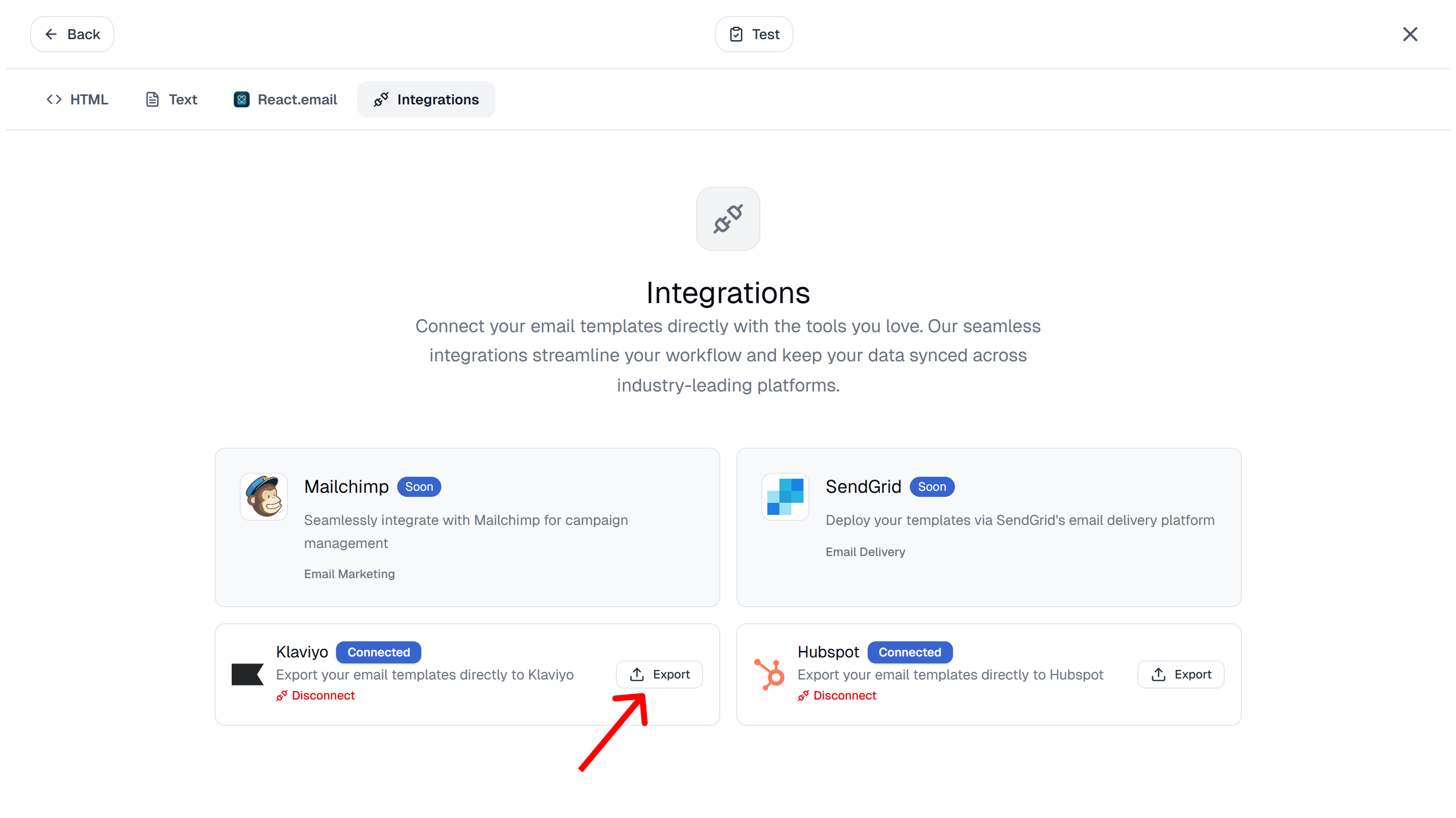
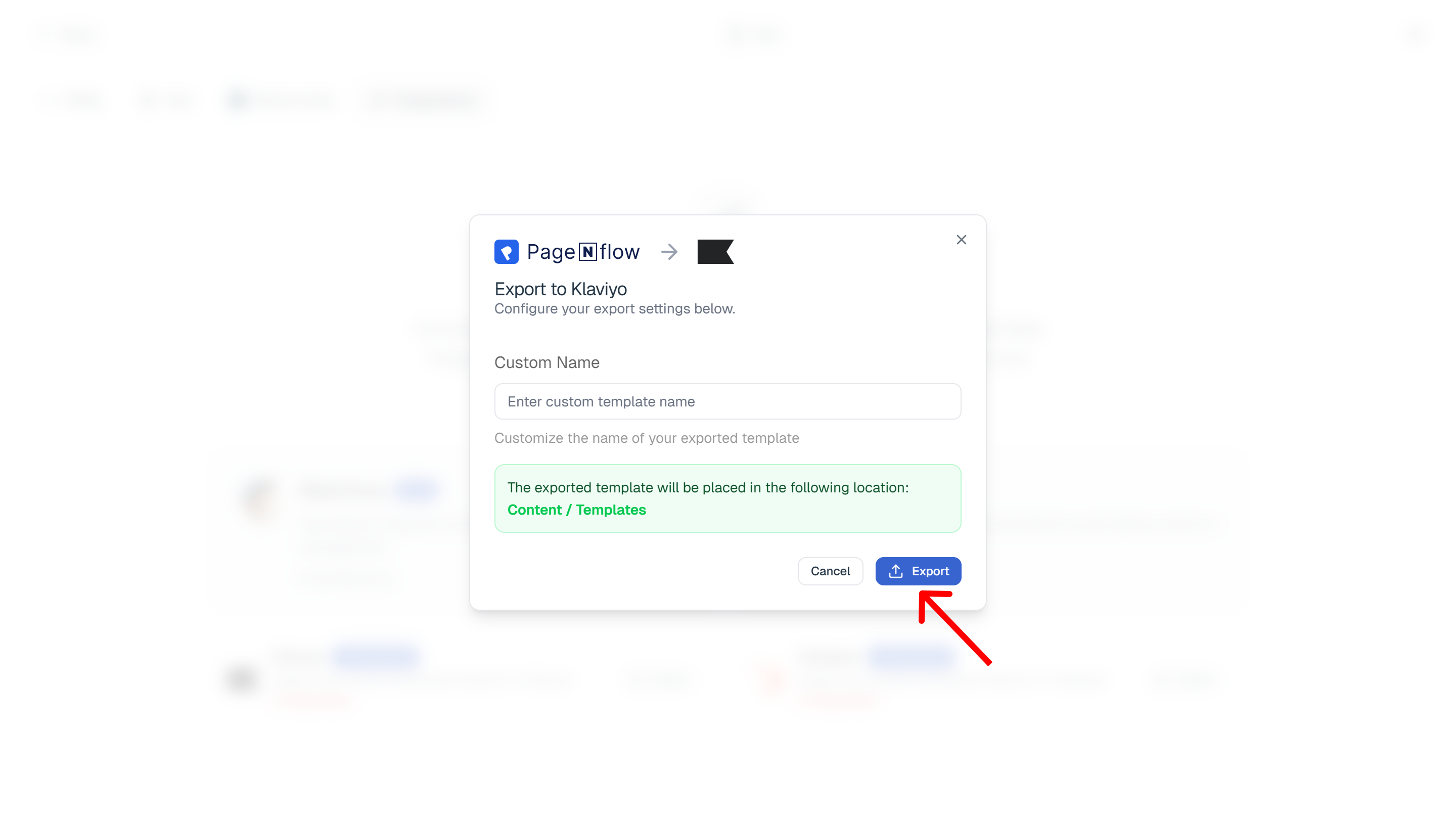
On the export dialog, you can add a custom name to avoid duplication errors then, click on the "Export" button.

Ready to build your next email template?
Drag, drop, done. Build pixel-perfect, responsive emails in minutes — no HTML wrestling required.
No credit card required
Tested across Gmail, Outlook, Apple Mail & more.